
FeedMe, a calm feed reader for Windows that keeps your highlights
My reading was spread over three places: a feed reader in a browser tab, a read-later app, and highlights I never found again. I wanted one quiet place for all of it, on my own PC. So I built FeedMe, and it’s free.
No account, no ads, no tracking. Your library is a file on your computer. Here is how it works, in six steps.
1. Add a source
Click Add a source and paste an address: a website, a blog, a YouTube channel or a subreddit. No need to hunt for the RSS link: FeedMe finds the feed and shows you its latest articles. If it looks right, press Follow.
Coming from another reader? Import its OPML file and your sources are all there.
2. Or follow from your browser
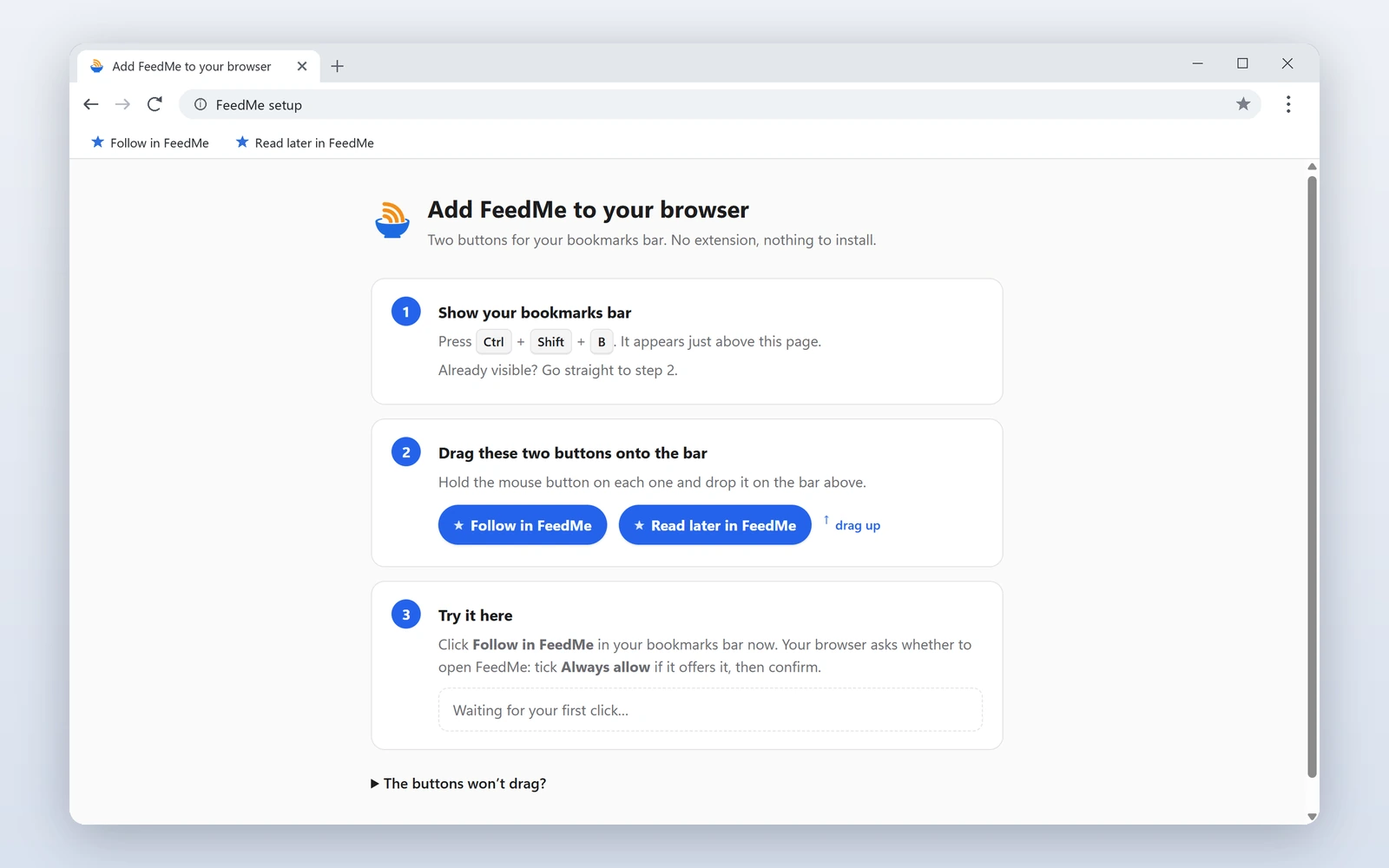
You are on a site you like, in Edge, Chrome or Firefox. Click Follow in FeedMe and FeedMe opens with that site, ready to follow. A second button, Read later in FeedMe, saves the page you are on.
They are two bookmarks, not an extension. FeedMe opens a page where you drag them to your bookmarks bar. You do it once.
3. New articles come to you
FeedMe checks your sources when it starts, then every 30 minutes. Prefer 15 minutes, one hour, three hours, or only when you ask? It’s in Settings.
Each source shows its number of unread articles. You stop visiting ten sites to see what’s new. You open FeedMe.
4. Read without the noise
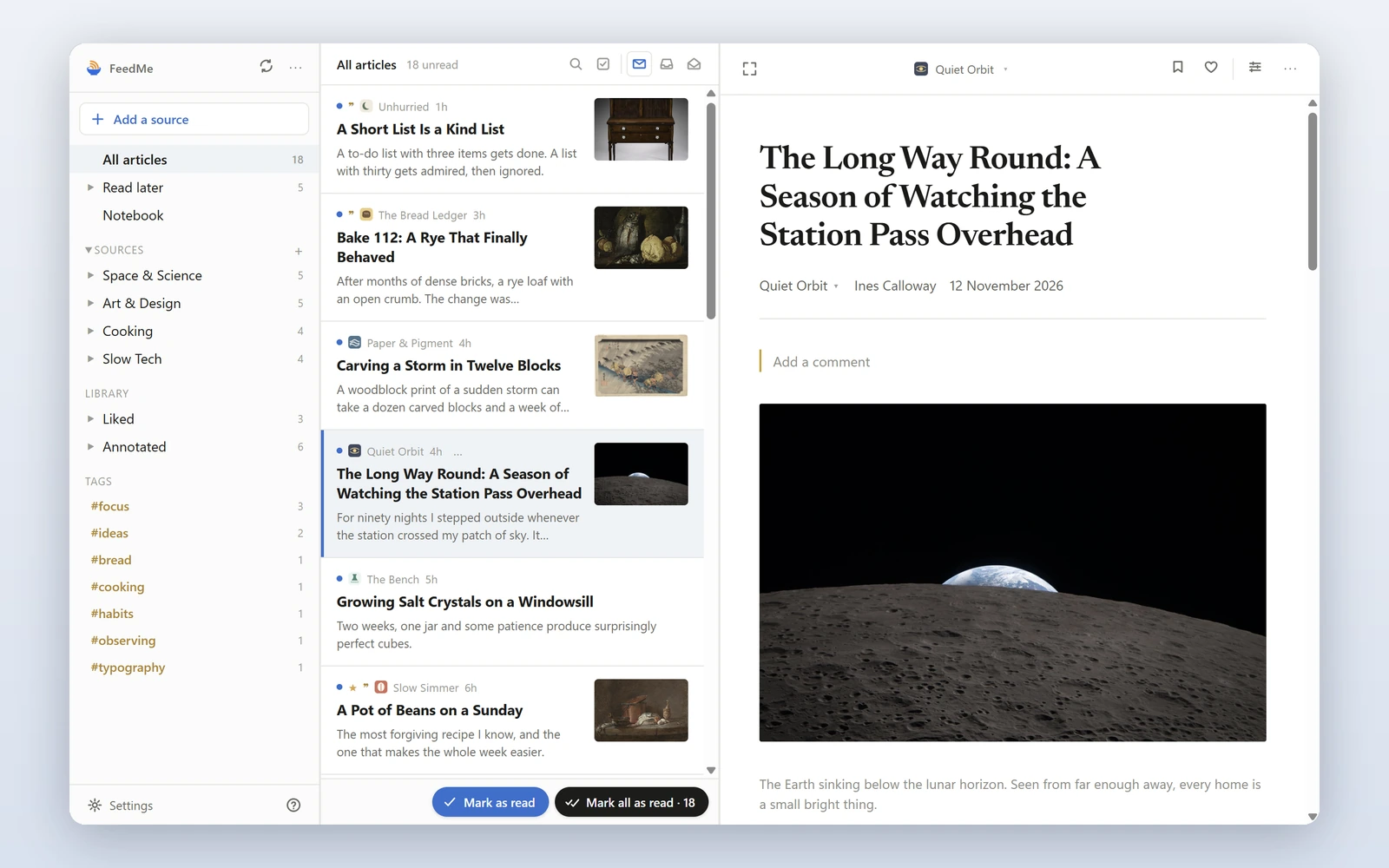
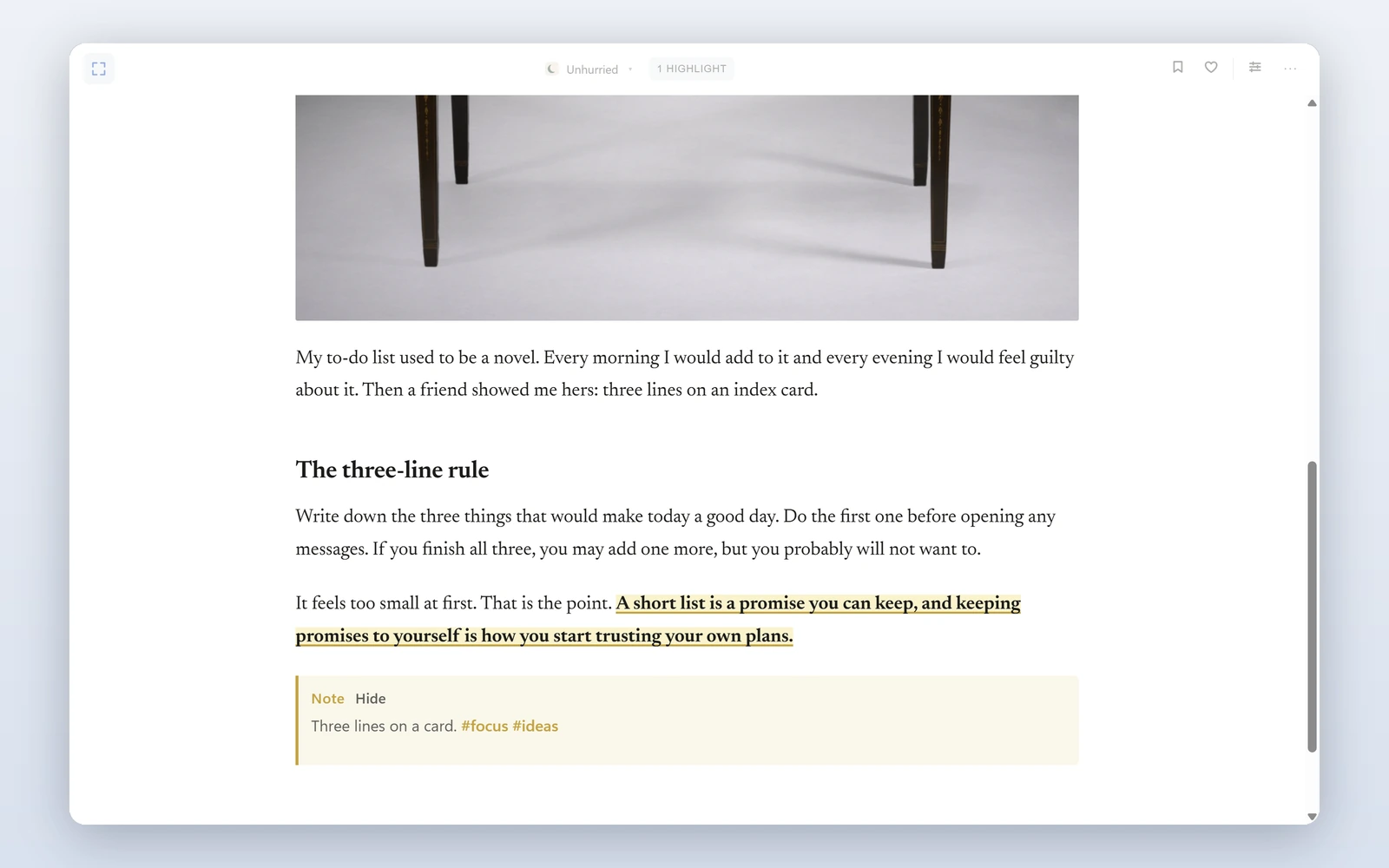
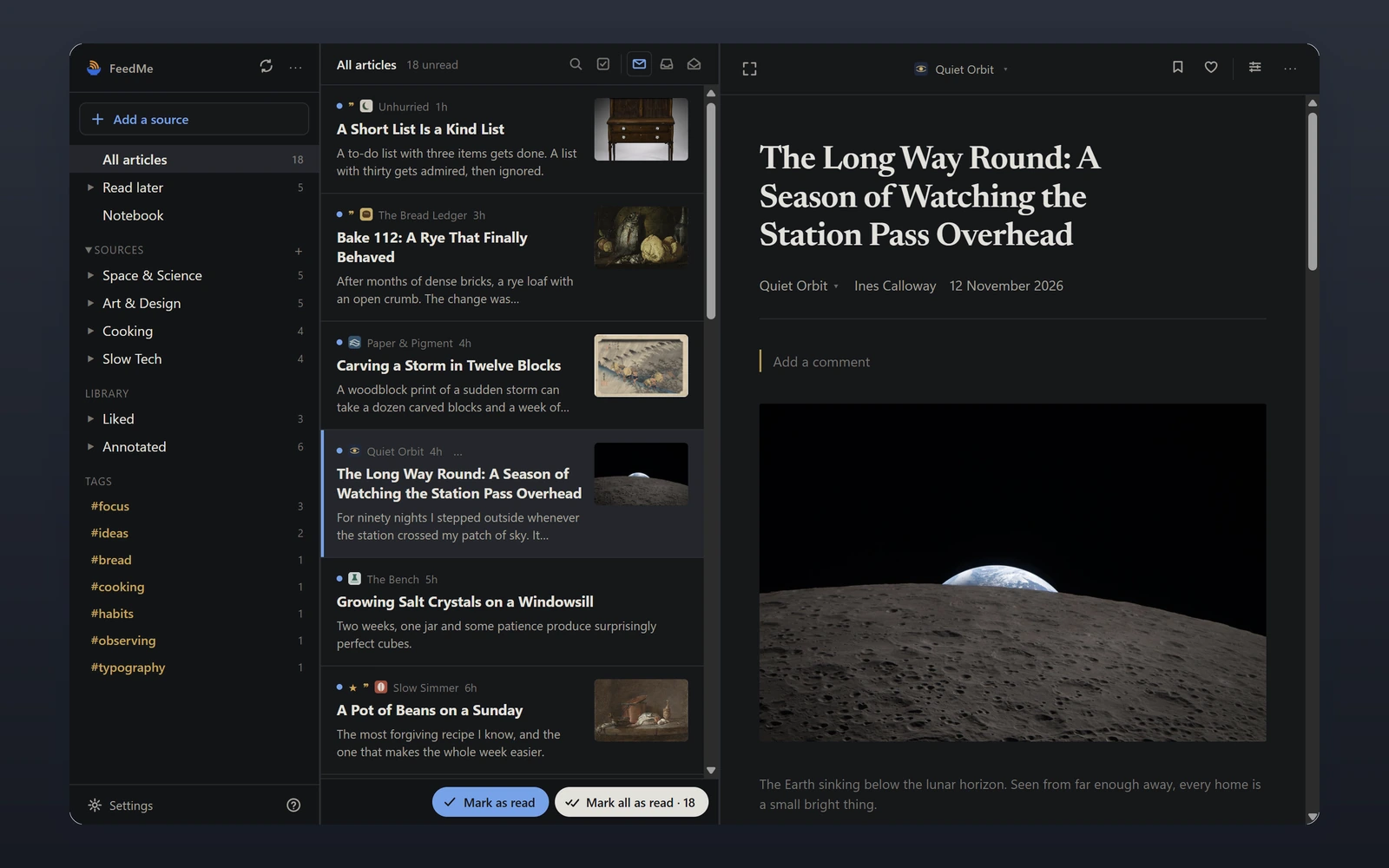
No ads, no pop-ups, no “subscribe” banner. Just the article, with three fonts and the size and width you like. Press f for focus mode and everything else disappears. The feed only gives a summary? Press c and FeedMe loads the full article.
Light or dark, as you like.
5. Highlight, take notes, find them again
Select a sentence to highlight it, or to attach a note. A #hashtag in the note becomes a topic.
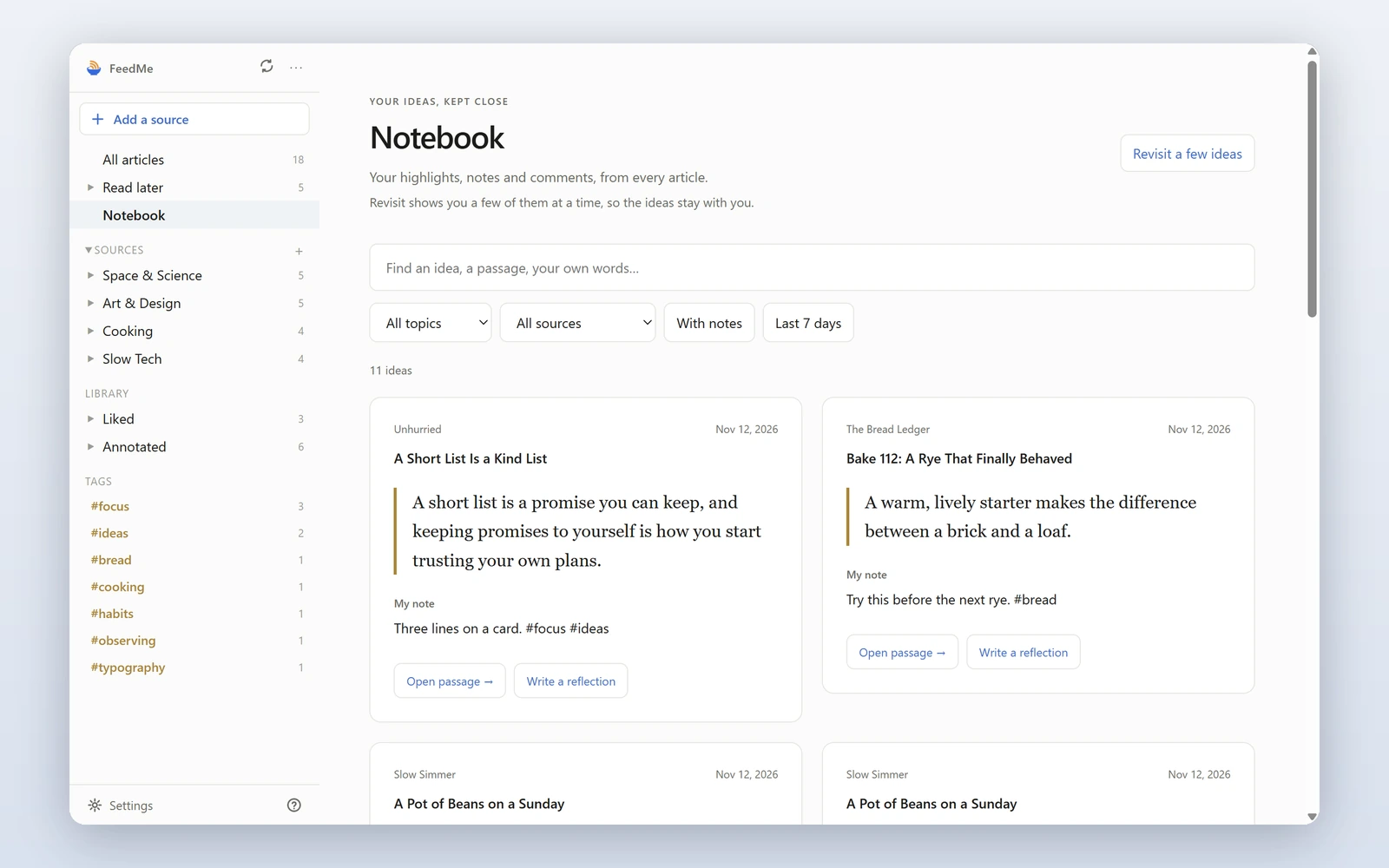
No more highlights I never find again. The Notebook gathers every highlight and note. Search it, or filter by topic, source or date.
6. Read it later
A long article and no time now? Press s. A link from somewhere else? Paste it. FeedMe keeps an offline copy, images included, for when you have the time.
Still in your browser? That’s the Read later in FeedMe button from step 2.
A few more things
- Keyboard first.
jandkto move,mto mark as read,sto save,fto focus.?shows the rest. - Take it with you. Export your library as an EPUB for your e-reader, or send an article to Instapaper, which I wrote about in 2020.
- Yours to keep. One file backs up and restores everything. Your sources export as OPML.
Try it
Download fromGitHub Or the standalone zip
For Windows 10 and 11. The installer needs no admin rights. The zip is unzip and run, and your library stays in its folder. They aren’t code-signed yet: if Windows says it protected your PC, click More info, then Run anyway.
Then add your first source. If you get lost, press ? for the shortcuts or open How FeedMe works in the menu. The privacy policy says what is stored and where: on your PC.
I vibe coded it with Claude Code. It covers what I read every day. If it helps you too, that’s why it’s free. Tell me what’s missing.